USB-C Explained: Cables, Chargers, and What They Can Do
From cable types to charging speeds, learn how USB-C, Power Delivery, and Thunderbolt work—what to buy, what to avoid, and how to get full performance.
A Universal, Reversible Port
USB-C is designed to simplify how we connect and power our devices by offering a reversible, compact plug that fits the same way every time. Instead of juggling multiple connectors for charging, data, and displays, this universal connector can handle all three, often at the same time. Its small shape suits slim laptops, tablets, phones, and accessories, while the symmetrical design reduces wear from repeated insertions. Beyond convenience, USB-C supports flexible roles: a device can act as a host or peripheral, and it can provide or receive power depending on what it is connected to. The connector itself does not guarantee high performance; the real magic depends on the cable capabilities, the port specifications, and the protocols both ends support. When everything aligns, USB-C can deliver high-speed data, robust charging, and even high-resolution video through a single wire, clearing desk clutter and making everyday tech more consistent, reliable, and easier to use.
Not All Cables Are Equal
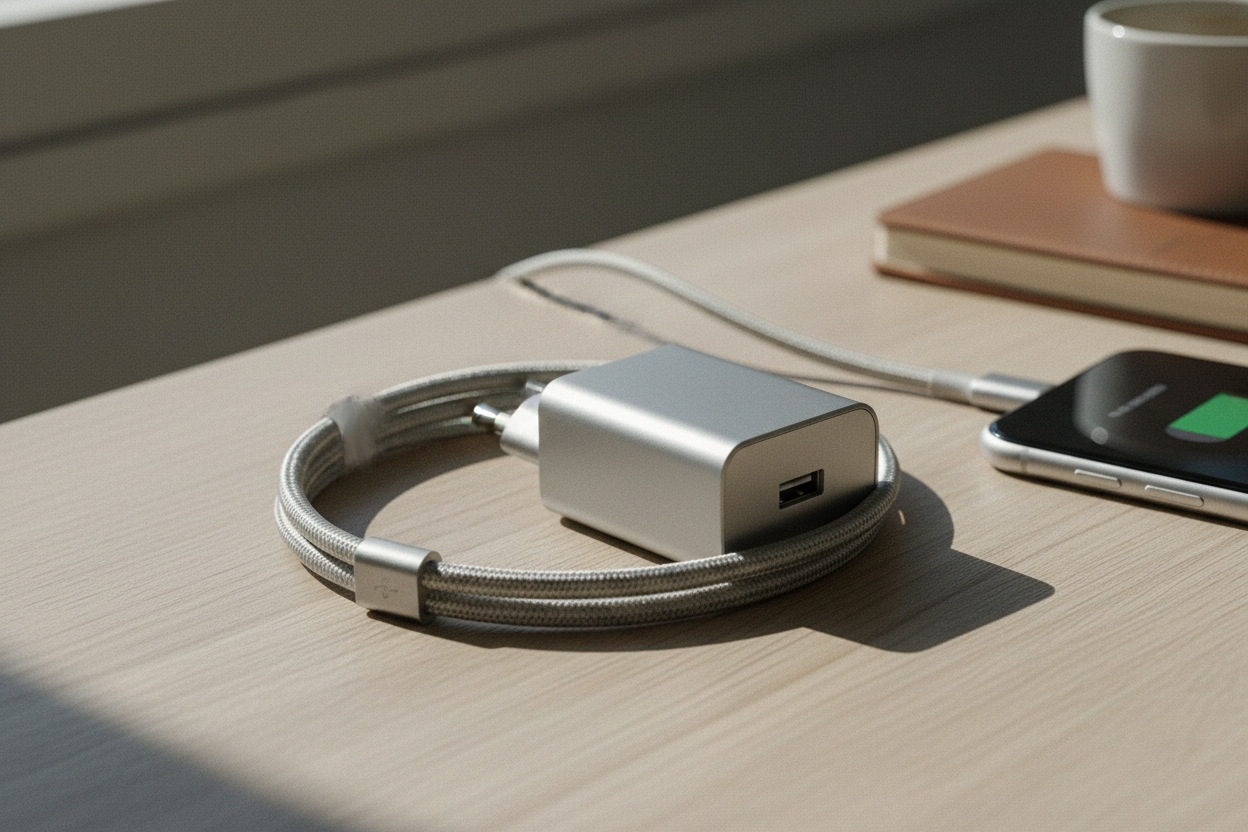
It is easy to assume every USB-C cable is the same, but there are big differences. Some cables only carry USB 2.0 speeds suitable for basic data and charging, while others support SuperSpeed and beyond for fast file transfers and demanding peripherals. Video support and the highest data rates often require cables built for USB4 or Thunderbolt, and these may include an e-marker chip that communicates capabilities like maximum current and bandwidth. Power handling varies too: common ratings are 3A for up to 60 W and 5A for higher-wattage charging, with 5A cables typically being thicker and always e-marked. Packaging, printing on the cable, or icons on the connectors can indicate whether it supports display, fast data, or high power. If a cable underperforms, it may be limited by design rather than broken. Matching the cable to your needs—power, data, or video—ensures you actually get the performance your devices and chargers can deliver.
Power Delivery and Fast Charging
One of USB-C's biggest strengths is USB Power Delivery (USB PD), a smart standard that negotiates safe voltage and current between charger and device. Instead of rigid charging rules, devices request what they need, while chargers advertise what they can supply. This enables everything from gentle trickle charging to high-wattage laptop power through the same port. Many modern chargers and devices also support PPS (Programmable Power Supply), which fine-tunes voltage for improved efficiency, reduced heat, and better battery health. To reach higher wattages, you typically need a 5A e-marked cable, and the charger must list a matching rating. If charging seems slow, check three factors: the charger output, the cable rating, and your device's PD profile. Proprietary fast-charge systems may add speed under specific conditions, but PD provides broad compatibility across brands. For day-to-day use, prioritize certified PD chargers, appropriate cable lengths, and proper ventilation around high-wattage bricks to maintain stable, safe, and speedy charging.
Video and Alternate Modes
USB-C can carry video using Alternate Mode protocols, most commonly DisplayPort Alt Mode. When supported by both the device and the port, you can connect a USB-C to DisplayPort or HDMI adapter or cable and drive external monitors without a separate display connector. Bandwidth matters: higher resolutions and refresh rates require more throughput, which may compete with USB data if a single cable carries both simultaneously through a hub or dock. Not every USB-C port supports video, and not every cable maintains the necessary lanes for display signals, especially very long or low-spec cables. Some docks provide video by converting from USB graphics or by tapping Alt Mode directly; these approaches differ in performance and system load. If you need a sharp, flicker-free monitor, verify that your computer's USB-C port lists DisplayPort Alt Mode or USB4/Thunderbolt support, choose a cable rated for the job, and keep cable runs as short and high quality as possible for reliability.
Chargers, Hubs, and Docks
The ecosystem around USB-C includes single-port chargers, multiport chargers, hubs, and full docking stations. A multiport charger shares a total power budget across several devices, dynamically allocating wattage so one laptop can fast charge while a phone tops up. Newer GaN chargers are compact and generally run cooler for their size, making them great travel companions. USB-C hubs typically expand USB-A ports, card readers, and sometimes video, drawing power from your device or a connected adapter. Docks go further, offering Ethernet, multiple displays, audio, and power passthrough for true one-cable setups at a desk. For gear like external drives and high-refresh displays, pick docks that advertise the needed bandwidth and PD output. When chaining adapters, avoid mixing too many converters, which can degrade signal quality. If peripherals brown out or disconnect, supply external power to the hub or dock and ensure you are using a cable that supports both the expected power and data demands.
Compatibility and Safe Pairing
USB-C emphasizes interoperability, but safe pairing relies on a few habits. Favor certified chargers and cables that clearly state wattage, current, and data speed. Use 3A or 5A e-marked cables for higher power, and avoid ultra-long cables when you need top data rates or stable displays. If a device does not show video, check whether the USB-C port supports Alt Mode rather than assuming the adapter is faulty. For mobile devices, OTG adapters enable keyboards, drives, and audio gear; for public charging, a data blocker can limit connections to power only. Be cautious with adapter ladders, such as USB-C to A to C, which can introduce bottlenecks and unexpected behavior. Do not force connectors, and watch for excessive heat around chargers or docks under heavy load. Firmware updates for docks and host devices can improve compatibility. When in doubt, match the cable and charger ratings to your device's published specifications for the most reliable experience.
Buying Tips and Future-Proofing
When shopping, start with your needs. For charging, look for USB PD support and enough wattage for your largest device, plus a 5A e-marked cable if you require higher power. For data, pick cables labeled for SuperSpeed, USB4, or Thunderbolt depending on the peripherals you use. For displays, confirm DisplayPort Alt Mode or USB4/Thunderbolt on the host, and choose a short, reputable cable rated for video. Prefer GaN multiport chargers for travel and a sturdier desktop dock for permanent setups. Keep a small kit: a short, flexible cable for power banks, a medium cable for desks, and a spare high-spec cable for fast transfers or external monitors. Label your cables with their speed and power ratings to avoid guesswork later. As standards evolve, aim for gear that is backward compatible and clearly documented. Thorough labeling, mindful cable length, and sticking to certified accessories will keep your USB-C setup clean, fast, and pleasantly predictable.