Storage Smarts: SSD vs HDD and When Each Makes Sense
Confused by SSDs and HDDs? Learn how they differ in speed, cost, longevity, and ideal use-cases so you can build storage that fits your needs.
Storage Foundations
In every computer, phone, or console, permanent storage holds your files and apps even when the power is off. Two main technologies dominate: solid state drives (SSD) and hard disk drives (HDD). An SSD stores data in flash memory cells with no moving parts, delivering fast access and silent operation. An HDD writes data to spinning platters, read by a moving head, offering large capacities at low cost. Understanding this tradeoff is the key to choosing wisely. Storage is not the same as memory; RAM is for short term tasks, while storage keeps everything long term. When you open a game, render a video, or load a giant spreadsheet, the system reads that data from storage first, then works on it in memory. That first step sets the tone for overall responsiveness. Knowing how SSD and HDD behave under different workloads will help you pair the right drive to your device and your budget across laptops, desktops, and external enclosures.
Speed and Responsiveness
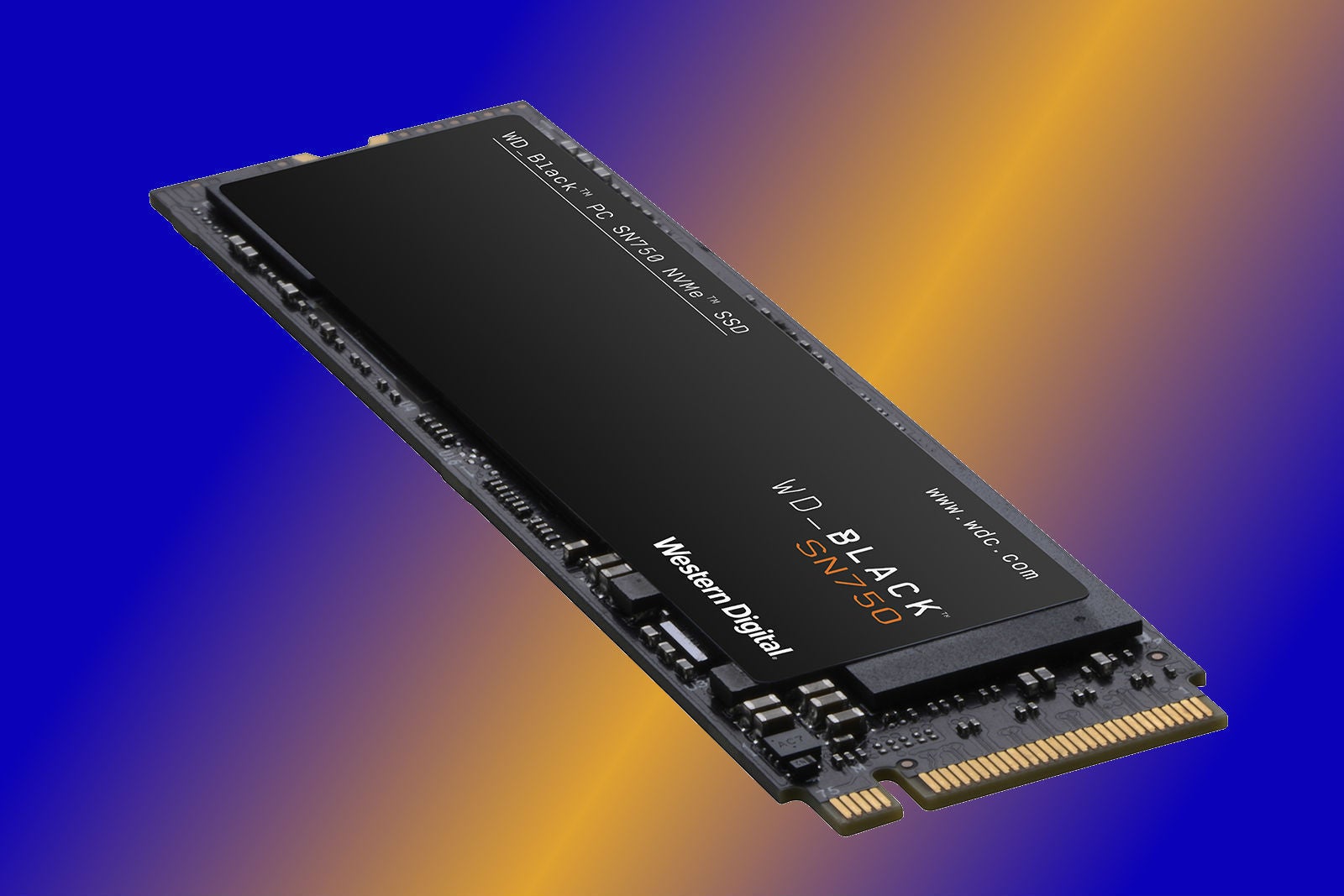
If you care about snappy starts, smooth multitasking, and quick level loads, SSD speed is hard to ignore. With no moving parts, an SSD delivers very low latency, excels at random reads and writes, and keeps your system feeling instant when launching apps or switching tasks. HDDs can be strong at sequential throughput when reading or writing big, continuous files, but their mechanical movement slows them on scattered, small requests common in everyday computing. This is why operating systems, creative software caches, and frequently used programs shine on SSDs. Even a modest SSD can remove the friction of waiting, reducing stutters caused by background indexing, updates, or antivirus scans. HDDs remain useful where speed is secondary to space, such as archiving media or offloading projects after completion. For a balanced setup, many users keep the OS and applications on an SSD and put bulk files on an HDD, gaining speed where it matters and capacity where it counts.
Capacity and Cost
Budget often decides the mix of capacity and performance. HDDs still deliver excellent cost per gigabyte, making them the economical choice for large photo libraries, video archives, backups, and game collections that do not need instant access. SSDs cost more per unit of storage but offer exceptional everyday responsiveness and lower system overhead. A practical strategy is tiered storage: a smaller primary SSD for the system, favorite apps, active projects, and a larger secondary HDD for everything else. This approach stretches your budget while keeping your most-used data fast. Content creators can use an SSD as a scratch disk during editing, then export finished work to an HDD. Gamers can keep top titles on SSD and rotate older games to HDD without losing them. If you are buying only one drive, prioritize SSD when speed affects your workflow or patience, and prioritize HDD when your primary need is to house a lot of data affordably.
Durability and Power
The lack of moving parts gives SSDs natural advantages in durability, noise, and power efficiency. SSDs resist shocks and vibrations better, making them ideal for laptops, handheld devices, and portable enclosures that travel in backpacks. They also run silently and typically draw less power, which can help with battery life and reduce heat inside compact systems. HDDs, by design, include spinning platters and an actuator arm, so they can be more sensitive to bumps and can produce audible whir or click sounds under load. However, HDDs are perfectly reliable when used in stable environments like desktops, NAS boxes with proper mounting, or media centers that benefit from high capacity. Consider your environment: if you often move your device, value quiet operation, or want cooler components, an SSD is compelling. For stationary setups with good vibration control, an HDD remains a solid, economical workhorse, especially for continuous downloads, surveillance footage storage, or long-term archives.
Longevity and Integrity
Modern SSDs and HDDs are both engineered for reliability, but they age differently. SSDs have finite write endurance because flash cells wear with each program-erase cycle. Good controllers use wear-leveling, overprovisioning, and error correction to extend life, and features like TRIM help maintain performance by managing unused blocks. HDDs avoid flash wear but can develop bad sectors and mechanical issues over time. Both drive types support SMART monitoring to track health indicators. For data integrity, the best defense is still a thoughtful backup strategy: versioned backups for work files, periodic full-system images, and an off-site or offline copy for critical documents. Consider also the nature of failure. SSD failures can be abrupt, while HDDs often give audible or performance clues. Data recovery from HDDs can sometimes be more feasible, whereas SSD recovery depends on controller behavior. Whichever you choose, plan for redundancy before you need it, not after.
Use Cases That Fit
Match the drive to the job. Choose an SSD for operating systems, productivity suites, gaming libraries you play often, and creative apps that thrive on fast scratch performance. Video editors benefit from SSDs for project files, proxies, and preview caches, then move finished renders to HDD. Software developers appreciate SSDs for rapid builds, container images, and dependency installs. Photographers can keep current shoots on SSD while archiving RAW sets to HDD. Pick an HDD for media servers, NAS arrays focused on capacity, time-shifted TV or surveillance storage, and backup repositories. In classrooms or offices with many identical systems, SSDs speed imaging and updates, while centralized HDD-based storage holds shared resources. For consoles and set-top devices that support external storage, an SSD can trim load times and reduce noise, whereas an HDD offers inexpensive expansion for large libraries. Hybrid setups combine both, aligning performance-critical tasks with SSD and space-hungry content with HDD.
Smart Buying Tips
When shopping, align interface, form factor, and workload. For SSDs, NVMe models on M.2 slots deliver higher ceilings for throughput and concurrency than SATA options, while 2.5-inch SATA SSDs are excellent upgrades for older desktops and laptops. Check your device's compatibility, available bays, and thermal design. For HDDs, select appropriate RPM, cache size, and intended use class, especially for continuous operation in NAS or DVR scenarios. Consider a hybrid plan: a fast SSD as primary storage and a roomy HDD for archives or backups. Migrate data methodically: clone the system drive to the SSD, enable TRIM, and avoid traditional defragmentation on SSDs. Keep firmware updated, monitor SMART health, and test backups periodically. If you work with large media, adopt a project lifecycle: ingest to SSD, edit on SSD, deliver, then archive to HDD with checksums. With a thoughtful approach, you will get both speed and staying power without overspending.